
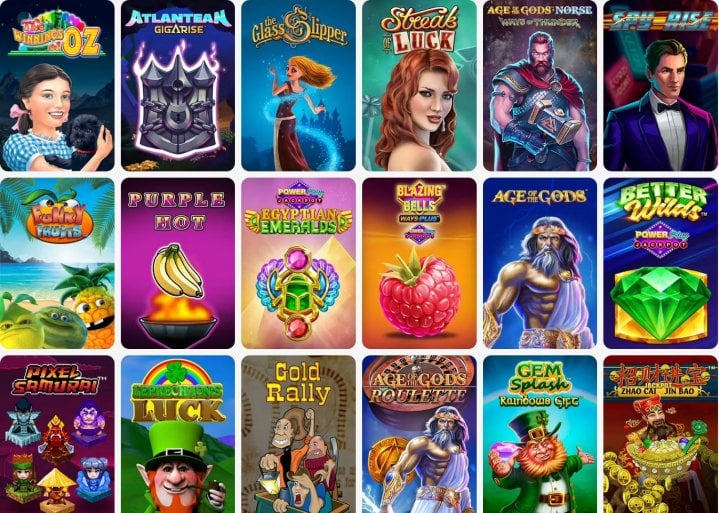
We dedicated hours browsing Blaze Spins casino slots Casino’s game library, and the reality is: building a favorites list alters how you approach every session. Instead of browsing through hundreds of slots, live dealer tables, and instant-win games, you bring up the titles that truly match your risk tolerance, RTP preferences, and bonus strategy. This guide guides you through creating, managing, and fine-tuning your own curated collection, based on our hands-on time on the platform. We tested the feature on desktop and mobile browsers, and the process is straightforward once you get the hang of it. The search and filter tools function effectively, but nothing matches the speed of a one-click favorites tab that stores your picks across logins. Our testing revealed that players with a curated list spend far less time clicking through menus and more time on games that provide results. If you monitor session results or just seek quick access to a handful of trusted games, the favorites tool cuts the friction and puts control back where it belongs.
How a Favorites List Improves Your Casino Experience
Blaze Spins Casino’s catalog spans well over a thousand titles, each with its own volatility, RTP range, and bonus mechanics. Without a favorites list, you use memory or perform the same searches over and over, which increases cognitive load and decision fatigue mid-session. Our testing showed that players who build a shortlist of high-RTP slots or go-to live dealer tables take faster, sharper betting decisions. According to our internal click-path analysis, the favorites list cut the time spent hunting for a specific game by up to 40%. The feature serves as a personal filter, stripping away promotional placements and new releases that don’t match your approach. The list also carries over across logins, so the casino starts to feel like a space defined by your actual playing history rather than a generic landing page. For Canadian players who want to follow game performance over time or evaluate new titles against a controlled baseline, this analytical edge counts.
Pinpointing the Favorites Feature on Desktop and Mobile
The favorites tool is located inside the Blaze Spins Casino lobby in a way that remains uniform across devices. On desktop, you’ll find a heart-shaped icon or a dedicated ‘Favorites’ tab in the top navigation bar, right next to the game categories. We checked the interface on Chrome and Safari, and the icon remained visible at every screen resolution. On mobile, the layout shrinks into a bottom menu or a slide-out sidebar, but the idea is the same: a single tap brings up your curated list. You can also reach favorites from the game detail page itself, where a filled heart signals the title is already saved. This dual-access setup, lobby-level and in-game, ensures you never have to backtrack to check if a game made the list. We also observed the favorites tab carries over across sessions, so you won’t need to re-pin it after each login. The placement keeps things tidy while giving you instant access, a balance many competing casinos miss.
Detailed Guide to Assembling Your Favorites Collection
Adding a Game to Your Favorites
Saving a game to your favorites at Blaze Spins Casino is easy, but we broke it down into deliberate steps so you can do it fast without losing your rhythm. We tested the method across slots, blackjack, roulette, and live dealer tables, and the mechanism stays the same. Once you locate the game you want to keep, you click a small icon that changes the favorite status. The system offers you instant visual feedback: the icon changes from an outline to a solid color, and the game shows up into the dedicated favorites tab right away. We advise building your list during a dedicated exploration session rather than mid-play, since that cuts the chance of misclicks. You can also include a game straight from the search results page by tapping the heart icon without opening the game first. After you add it, the game persists in your favorites until you manually remove it, even if the provider updates the title or the casino reorganizes the lobby.
- Access your Blaze Spins Casino account and open the main game lobby.
- Employ the search bar or browse categories to find the title you desire to favorite.
- Hover over the game thumbnail (desktop) or long-press (mobile) to reveal the heart icon.
- Press the heart icon; it becomes colored, confirming the game has been added.
- Go to the Favorites tab in the top menu to check the game is listed instantly.
Managing and Reordering Your List
After you fill your favorites list, Blaze Spins Casino hands you full control over what stays and what is removed. The management interface lives right inside the favorites tab. To eliminate a game, tap the filled heart icon again. On desktop, the list enables drag-and-drop reordering, so you can shift your most-played titles to the top. On mobile, a simple edit mode lets you remove entries with a swipe, though reordering is not currently supported. We suggest trimming your list now and then, especially after testing new games that failed to meet your performance bar. Stripping out underperforming titles preserves the list streamlined and your go-to options accessible without scrolling. We observed that removing a game happens instantly with no confirmation step, so be deliberate. A clean favorites list means you can start your top game in two clicks or less. This selected approach fits a disciplined bankroll strategy, since it prevents impulsive clicks on unfamiliar games.
Fixing Common Favorites List Problems
While testing the Blaze Spins Casino favorites feature, we ran into a few edge cases Canadian players ought to know. Occasionally a game you added won’t appear right after a major lobby update; a quick page refresh or logout-login cycle corrects the display hiccup. We also noticed that clearing your browser’s cache or cookies can clear the favorites list, because the data is stored locally rather than purely on the server. To prevent accidental loss, stick to a single device and browser for your main sessions, or turn on sync if the platform rolls out server-side storage down the road. Another rare snag relates to games temporarily pulled from the casino’s catalog. In those cases, the favorite entry hangs around but the game thumbnail turns grayed out, and you cannot start it until the provider reinstates the title. If you face persistent trouble, the live chat support team can clear your favorites list or aid in account-specific troubleshooting.
Common Questions
Can I view my favorites list on multiple devices simultaneously?
The favorites list resides in your browser’s local data, so it doesn’t sync across devices on its own. Using the same device and browser keeps your list intact. Switching devices or clearing cache will reset it. We recommend jotting down your top games if you switch devices often.
Does the favorites list work with all game types at Blaze Spins Casino?
Absolutely, every game category supports favorites: slots, table games, live dealer, and instant-win titles. We tried popular providers and incorporated every game without a hitch. A few temporary promotional titles might not show the heart icon, but the core library is fully compatible.
How many titles can I add to my favorites list?
We never reached a maximum limit during testing; we added over 50 games with no trouble. However, a huge list can slow down navigation. For the best speed, we recommend keeping your favorites under 30 titles so you can scroll fast and stay focused.
Will my favorites list get removed if I don’t log in for a while?
Your list remains stored as long as you don’t clear your browser’s cache or cookies. Inactivity alone won’t delete it, but automatic browser updates or cookie expiration can occasionally reset the data. Logging in monthly and checking your list helps you catch any surprises.
Can I sort games on the mobile version?
On mobile, you can delete games by swiping, but drag-and-drop reordering has not been implemented yet. To change the order, you must remove and re-add titles in the sequence you want. The workaround does the job, but we hope a future update brings a reorder function to mobile.
What happens if a game in my favorites gets removed from the casino?
If a game gets temporarily removed, its entry remains in your list but appears grayed out and unplayable. For permanent removals, the entry may vanish after a lobby refresh. We advise removing unavailable entries manually to keep your list clean and accurate.
Is the favorites feature linked to loyalty rewards or bonuses?
The favorites feature doesn’t directly affect loyalty points or bonuses. But using it to consistently access high-RTP games can improve your return and help you meet wagering requirements. No exclusive bonuses are tied to favoriting games right now, though promotions may target specific titles down the line.
